

Salesforce Data Import Wizard
The Data Import Wizard makes it easy to import data for many standard Salesforce objects, including Accounts, Contacts, Leads, Solutions, Campaign Members, and Person Accounts. Data for Custom Objects can also be imported using the Data Import Wizard.
One thing to remember though, is that you can only import up to 50,000 records with the Data Import Wizard at any one time. The Data Import Wizard is available in both Classic and Lightning.
Things to remember before importing your data
- Ensure each record has a Owner.
- Ensure the data has been de-duplicated.
How to user the Data Import Wizard
- From Setup, populate Data Import Wizard into the Quick Find text box and select Data Import Wizard.
- Click Launch Wizard.

- If you are trying to import a Standard Object (Accounts, Contacts, Leads, Solutions, Person accounts, or Articles), click Standard Objects. To import custom objects, click Custom Objects.

- Next you need to decide if you are just wanting to Add new records to Salesforce, Update existing records already in Salesforce, or Add and Update Salesforce records at the same time.

- Once you have decide if you are Adding, Updating or Adding and Updating existing records, then you are able to specify any matching criteria. You can also choose whether to trigger workflow rules and processes when the imported records meet the criteria.
- Specify the file that contains your data (eg. drag your CSV data file to the upload area of the page or alternatively you can click the CSV category and then navigate to the file) and Click Next.

- Map your data fields to Salesforce data fields. The Salesforce Data Import wizard maps as many of your fields as possible to standard Salesforce data fields. However, for those it cannot map, you will need to do this manually.

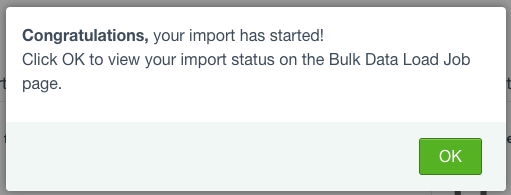
- Click Start Import.


- Check import status.




A Certified Salesforce Administrator, Salesforce Einstein Analytics and Discovery Consultant, ISTQB® Certified Tester Advanced Level, Jitterbit Foundations and Jitterbit Core Certified QA Test Automation Manager who is also an experienced creative all-rounder with enthusiasm and the proven ability to understand client needs and deliver satisfying solutions. A thirst for new technology and modern Quality Assurance and Testing techniques keeps me aspiring to learn at every opportunity. My current role is at Publicis Sapient who are an official Salesforce Platinum Partner. Publicis Sapient provide Salesforce expertise and strategic thinking that enables organisations to transform their business to Cloud-based technology.